HDMI Capture Card, 4K@30Hz Input / 1080p@60Hz Capture, USB-A + USB-C
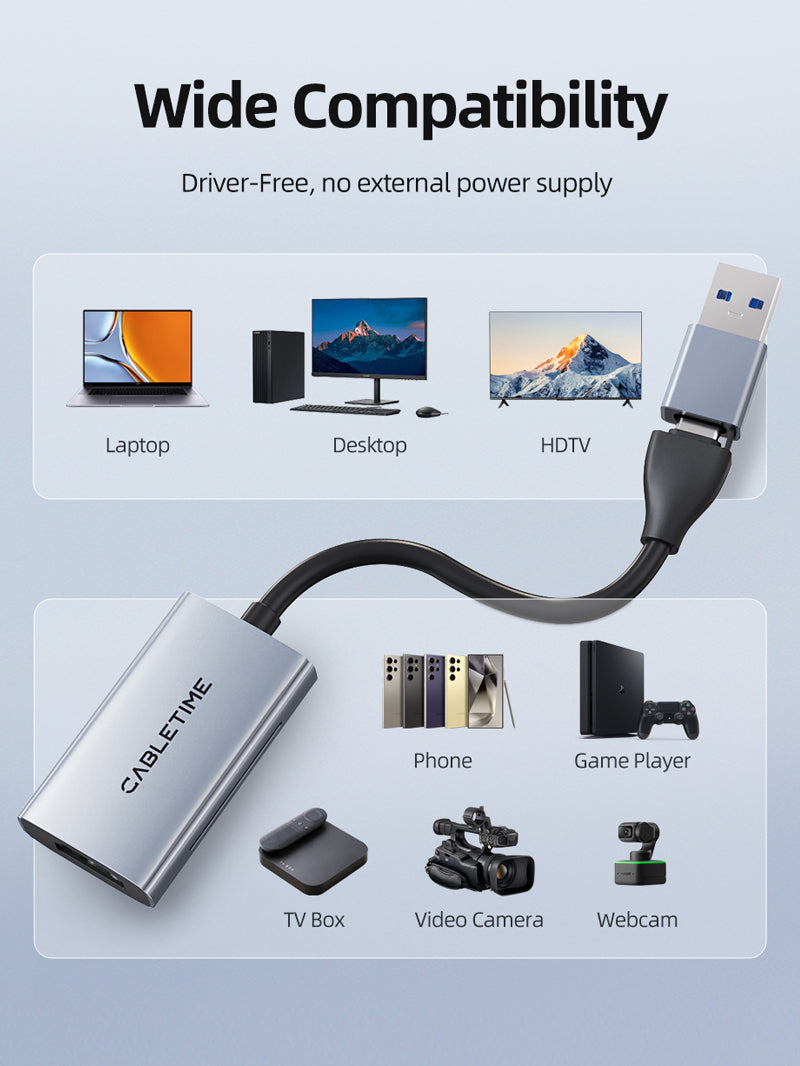
The CABLETIME CB65G accepts HDMI input up to 4K@30Hz and sends captured video to a compatible computer, tablet or USB host at up to 1080p@60Hz. Its integrated USB-A and USB-C 3.0 connectors make it suitable for streaming, recording, online teaching and video-conferencing workflows.
Capture consoles, cameras and HDMI sources through USB-A or USB-C
4K@30Hz InputMaximum accepted HDMI source resolution.
1080p@60Hz CaptureMaximum captured output to the host.
USB-A + USB-CConnect without a separate plug adapter.
Plug and UseWorks with compatible UVC capture software.

Correct model distinction
CB65G is the standard compact capture model. Connect the HDMI source to the input, connect the USB-A or USB-C plug to the host, then choose the capture device inside OBS, Streamlabs, Zoom, VLC or other compatible software.
CB65G does not include:HDMI loop-out, 100W Power Delivery, microphone input or headphone-monitoring output. Those functions belong to other CABLETIME capture-card models.
Technical specifications
| Brand | CABLETIME |
|---|---|
| Model / SKU | CB65G / CT-ACHC3-AG |
| HDMI input | 1 × HDMI female, up to 4K@30Hz input |
| Host connection | USB-A + USB-C 3.0 |
| Maximum capture output | Up to 1080p@60Hz |
| Material | Aluminium shell with PVC jacket |
| Primary function | HDMI video capture to a compatible USB host |
USE
Suitable for Nintendo Switch, PlayStation, Xbox, cameras, camcorders, presentation sources and other unprotected HDMI outputs used for streaming or recording.
COMPATIBILITY
The host must support USB video capture and compatible software. HDCP- or DRM-protected content may not be capturable. A USB 3.0 port is recommended for maximum capture performance.
FAQ
Does 4K30 mean 4K recording? No. It accepts up to 4K30 input and captures up to 1080p60.
Does it have HDMI output? No loop-out is provided on CB65G.
Is it a USB-to-HDMI monitor adapter? No. It captures HDMI into the computer; it does not add a display output.
Genuine CABLETIME product • GST invoice • India-based assistance • Applicable warranty support • Exact CB65G identification


Check the signal path first.
Identify the source and display or capture device, check connector type and conversion direction, then connect and select the correct input. Choose a video mode supported by the complete setup.
Will I always get the maximum listed resolution?
Actual output depends on the source, receiving device, intermediate equipment, selected mode and the length or version you choose. Check any length-specific limits in the product details.
Which length or version should I select?
Use the product selector to choose the required option. Check that option against any model, connector, length or pack-size distinctions in the specifications before ordering.