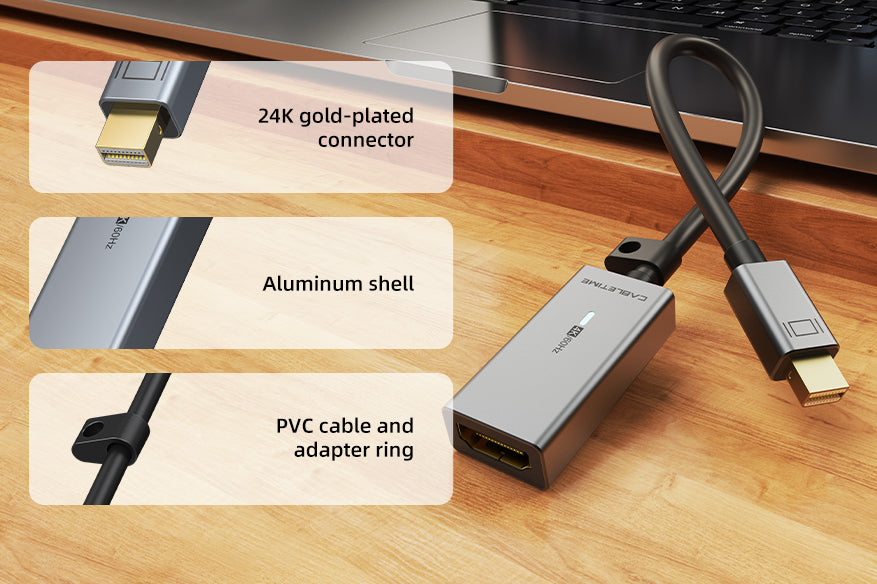
Mini DisplayPort to HDMI Adapter with Ring, 4K@30Hz, 0.15m
Our compact aluminium adapter converts a compatible Mini DisplayPort source to HDMI at up to 4K@30Hz. The integrated ring keeps the adapter easy to organise with a travel, presentation or service kit.
Connect Mini DisplayPort and Thunderbolt 1/2 computers to an HDMI screen in 4K
4K@30HzCompatible UHD outputMiniDP → HDMIFixed one-way conversionThunderbolt 1/2Fits the Mini DisplayPort-shaped port0.15m + RingCompact and easy to organiseGive an older MacBook, Surface or PC an HDMI connection
Connect Mini DisplayPort to the computer and attach a standard HDMI cable to the adapter’s HDMI female socket. Connect the other end to the monitor, TV or projector and select the required display mode.
Port identification: Mini DisplayPort and Thunderbolt 1/2 use the same connector shape. USB-C and Thunderbolt 3/4 use a different port and require a USB-C adapter.
Technical specifications
| Source connector | Mini DisplayPort male, compatible with suitable Thunderbolt 1/2 ports |
|---|---|
| Display-side socket | HDMI female |
| Maximum video | Up to 4K@30Hz with compatible source and display |
| Construction | Aluminium shell, braided cable, approximately 0.15m, retaining ring |
| SKU | CT-AV586-P01G4K60(R)-SG0.15 |
USE
- Connect Mini DisplayPort to the source.
- Connect a suitable HDMI cable to the adapter.
- Connect HDMI to the display.
- Select the HDMI input and configure display settings.
COMPATIBILITY
For Mini DisplayPort and suitable Thunderbolt 1/2 source devices connecting to HDMI-input displays. It is not for USB-C/Thunderbolt 3/4 ports and does not work in reverse.
USER SCENARIOS
- Older MacBook to HDMI monitor
- Microsoft Surface to television
- Conference-room projector adapter
- Travel and presentation kit
FAQ
Does it fit USB-C?
No.
Can it work HDMI to Mini DisplayPort?
No.
Does it carry audio?
Yes, when the source and HDMI display support audio through Mini DisplayPort.
genuine product, GST invoice, India support and applicable warranty.


Check the signal path first.
Identify the source and display or capture device, check connector type and conversion direction, then connect and select the correct input. Choose a video mode supported by the complete setup.
Will I always get the maximum listed resolution?
Actual output depends on the source, receiving device, intermediate equipment, selected mode and the length or version you choose. Check any length-specific limits in the product details.
Which length or version should I select?
Use the product selector to choose the required option. Check that option against any model, connector, length or pack-size distinctions in the specifications before ordering.